On this page
Grok Bot has no LinkedIn app, and LinkedIn doesn't offer a connection for it. To work on your LinkedIn, Grok Bot needs a tool that can access your account. Extrovert is one. It's LinkedIn engagement and outreach software with its own MCP server, and Grok Bot can add that server from a chat message.
The connection works like this: Grok Bot → Extrovert → your LinkedIn account. You send Grok Bot one line, Add this MCP server: https://mcp.goextrovert.com, sign in to Extrovert and click Allow. You can then ask "What needs attention on my LinkedIn today?" and Grok Bot goes through your comment drafts and DMs with you.
How to connect Grok Bot to LinkedIn
You need two things: Grok Bot, and an Extrovert account with your LinkedIn connected. Grok Bot comes with Premium, Super and Ultra on The X Subscription. Older Cursor accounts also get it with a paid Cursor plan or self-serve Cursor Teams, or by linking SuperGrok (not Lite) or X Premium+. A seat on a self-serve Grok Business plan works too. Setup takes a few minutes.
- Start an Extrovert trial. It's ten days and needs no card. Sign-up asks for your public LinkedIn profile URL, and Extrovert uses it to prepare a starting setup: a Voice (the instructions and examples used to write your drafts), a topic campaign, and an outreach campaign with up to 100 people who match your likely buyers. Both campaigns start switched off.
- Connect your LinkedIn account in Extrovert. The profile URL alone doesn't give Extrovert access. Open Settings → LinkedIn account and connect with the Chrome extension (it uses your existing LinkedIn session) or with your email and password.
- Send Grok Bot the message. In Extrovert's left menu, open Connect AI, choose Grok Bot and click Copy. Open a Grok Bot chat and send the message:
Add this MCP server: https://mcp.goextrovert.com - Confirm the server. Grok Bot shows what it's about to add. Check that the URL matches the one you sent, then confirm.
- Sign in to Extrovert. Grok Bot gives you a sign-in link. Open it, sign in to Extrovert, click Allow and go back to Grok Bot. Finish within about ten minutes. If the sign-in window closes first, click Reopen on the card in the chat.
- Check the connection. In your next message, type
@, select Extrovert and send: "Check my Extrovert connection. Retrieve my profile, confirm the connection works, and get ready to help me use the app." - Switch your campaigns on. Look over the people, the topic and the Voice Extrovert prepared. Ask Grok Bot to change whatever doesn't fit, then ask it to start the campaigns. The first posts and drafts show up within minutes. Until a campaign is running, there's nothing for Grok Bot to review.
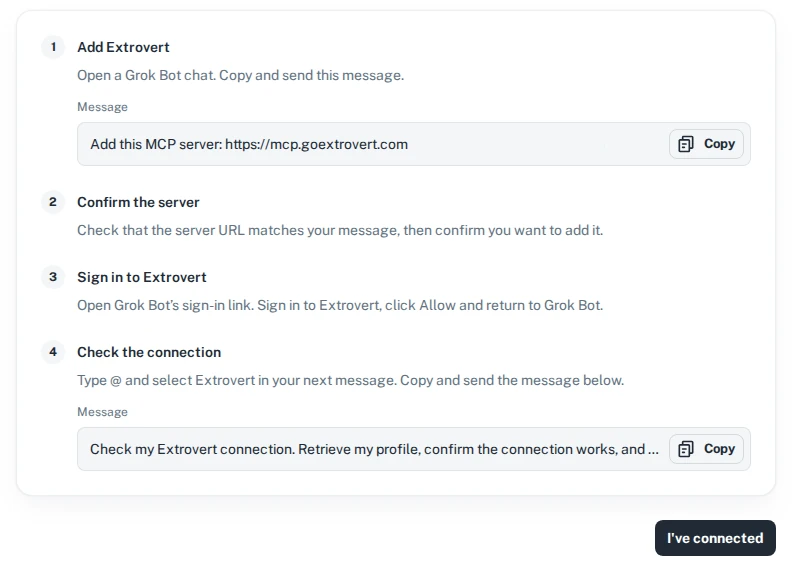
The Connect AI page in Extrovert gives you both messages to copy.
The connection works if Grok Bot replies with your Extrovert profile and Extrovert shows up under Installed in Grok Bot's Connect apps.
You sign in to Extrovert rather than LinkedIn, much like "Sign in with Google." Grok Bot doesn't see your LinkedIn password or session cookies. Each teammate connects with their own Extrovert account. Grok Bot works in the team you have selected in Extrovert, unless you ask it to use another team you belong to.
Add it through a form instead
The Grok Bot desktop app also has a form for this. Open Connect apps and choose Add a custom connector at the bottom. Name it Extrovert, set Type to Remote HTTPS, paste https://mcp.goextrovert.com into Server URL and click Add plugin. Leave HTTP headers and Client ID empty. When Extrovert shows Needs auth, choose Authenticate, sign in to Extrovert and click Allow.
If something doesn't connect
- Extrovert shows "Needs auth" or "Disconnected." Open it in Connect apps and choose Authenticate (Authorize on the phone).
- Grok Bot says it can't see your campaigns. Type
@and select Extrovert in the message, or start a new chat. If you skipped Allow, run the sign-in again. - The app shows "Disabled by team admin." Your team's admin decides which apps and MCP servers Grok Bot can use. Ask them to allow
https://mcp.goextrovert.com.
The Extrovert MCP help article covers less common problems.
Using the regular Grok app instead
Grok Bot and the Grok chat app are two different apps with separate sign-ins, so you connect Extrovert in each one you use. In Grok, go to grok.com/connectors, click New Connector, choose Custom and paste https://mcp.goextrovert.com. Sign in to Extrovert and click Allow. On Grok Business and Enterprise, a team admin adds the connector first.
What Grok Bot can do on LinkedIn through Extrovert
In Extrovert you choose whose posts to follow (prospects, clients, peers, creators you learn from) and which topics to watch, grouped into campaigns. Extrovert finds their new posts, drafts comments and DMs in your Voice, and tells you when a message is due. You approve what goes out, or let a campaign comment on its own.
With Extrovert connected, Grok Bot does that work from your chat:
- Go through today's comment drafts with you. It shows what's waiting, rewrites a draft that needs work ("shorter, and ask about their pilot"), approves the good ones, skips the rest, and pulls back a comment that hasn't gone out yet.
- Answer your DMs. It reads a conversation, drafts a reply, edits it when you ask and sends it when you say so. Before you write to someone new, it can read their profile, recent posts or recent comments.
- Set Extrovert up for you. It can write your Voice from what you tell it and from your recent posts, start a campaign for the people you want to keep seeing your name, or set up a topic campaign that collects posts on a subject you want to discuss.
- Find new people. It searches Extrovert's B2B database by job title, seniority, company, location, industry or the tools a company uses. It can also set up an Intent Signals campaign, which finds people from what they do on LinkedIn.
Grok Bot adds two features of its own. Grok Bot works on its own cloud computer with a browser, so it can look something up on the web and use it in the same task. And it can run a routine on a schedule, so a LinkedIn check can be waiting for you every morning.
Publishing posts to your own feed isn't part of Extrovert, which handles comments, DMs and finding people. Grok Bot can't manage billing or teammates.
What to ask Grok Bot first
Start with questions that only ask it to read, so you can see how Grok Bot judges your drafts before it acts. Then let it approve drafts.
| Ask Grok Bot | What happens |
|---|---|
| "Show me everything waiting for approval across all my campaigns." | Lists the comment drafts waiting for your review. |
| "What needs attention today? Approve the comments you're sure about and show me the rest." | Reads the drafts and the DMs that are due, approves the ones it's confident in, and shows you the ones that need another look. |
| "Draft a reply to the last message from Anna, keep it short. Show me before you send it." | Prepares the reply, waits for your edits or approval, then sends. |
| "Before I reply to Anna, read her recent posts in Extrovert and check her company's site for news from the last month. Then draft the reply." | Reads her posts through Extrovert, looks up the company in its own browser, and writes a reply that uses both. |
| "Read my recent LinkedIn posts and suggest talking points for my Voice." | Pulls your posts and proposes talking points to add. |
| "Here are profile URLs for six founders I want to stay visible with. Put them in a new campaign that uses my casual Voice." | Creates the campaign with those people in it, and starts it when you say so. |
| "Find VPs of Sales at US SaaS companies with 50 to 200 employees that use HubSpot." | Runs a Lead Finder search and shows a preview of up to 20 matches. |
| "Every weekday at 9:00, check my Extrovert comment drafts and due DMs and send me a short list of what needs me. Don't approve or send anything." | Sets up a routine. Each morning Grok Bot prepares the list, and the approvals and sends wait for you. |
Adding people from a search costs Extrovert Credits, one per person, while previewing is free. Before Grok Bot adds anyone, it tells you how many people, which campaign they're going into and what it costs, then waits for your approval.
A routine runs at the time you set, in the time zone from Grok Bot's Settings → Bot → Timezone. A test run of a routine does real work, so it reads your actual queue.
When a draft is close but not right, tell Grok Bot what to change the way you'd brief a colleague: "shorter," "ask about their hiring plans," "drop the compliment." Inside Extrovert, editing and approving drafts looks like this:
Illustration: a draft comment on a prospect's post; your direction, typed or spoken: "Make it shorter. Ask what they use today."; the draft rewritten with it, shorter, with the Approve button.

What happens after Grok Bot approves or sends
Grok Bot acts only through Extrovert, so anything it approves or sends follows the same daily limits and working hours as an approval you'd make in the Extrovert dashboard. It follows your permissions and stays within your credit balance.
Approving queues a comment; it doesn't post it immediately. The comment moves to the Pending tab of your feed and goes out with a gap after the previous one, within your working hours and under your daily limit. Approve something late in the evening and it may publish the next morning. Until then, you can cancel it, or ask Grok Bot to.
DMs are queued too. Extrovert spaces them out and sends them during your working hours. If a reply can't wait, ask Grok Bot to send it now.
"Nothing waiting" doesn't always mean nothing is happening. Grok Bot's approval list covers running campaigns that wait for your review. Campaigns on Auto publish without asking, so their comments never show up there.
In Extrovert itself, the DMs that need your attention appear like this, each with the reason it's due:
Illustration: the DM inbox. 46 conversations run on Auto. 4 wait under Needs you, each with its reason. Said they'd book a call. Did they? (held). You said it was your last message (held). Posted something personal (held). Key accounts: first DM due (you check). The first one is open: "They said they'd book a call, and it's not clear they did." Its draft is ready, with the buttons Send and Snooze.


Try it on your own account first. Connect Extrovert, switch on a campaign, and ask Grok Bot what's waiting for you. Once you've watched it handle a few drafts the way you would, let it approve the rest.
FAQ
Does Grok Bot have an official LinkedIn integration?
No. Grok Bot's app catalog has no LinkedIn app, and LinkedIn doesn't offer a connection for Grok Bot. Grok Bot reaches your LinkedIn through a third-party tool that you connect, such as Extrovert. Our LinkedIn MCP guide explains the kinds of servers you can pick from.
Is it safe for my LinkedIn account?
Extrovert keeps activity within your daily limits and follows your working hours. It spaces out actions, and anything over the limit waits for the next day. You choose what to review and what to automate. Grok Bot never sees your LinkedIn password or cookies, and it can only approve or send through Extrovert, so the same limits apply to everything it does.
How much does it cost?
The connection is included in Extrovert's plan. One seat costs $49 a month on monthly billing, and seats get cheaper as your team grows. Each seat is one LinkedIn account and includes 250 tracked people, 1 topic and 300 Credits a month. The 10-day trial needs no card, and the pricing page has the team rates. Grok Bot is billed separately through your X, Cursor or Grok plan.
Can I use it for a teammate's or client's account?
Yes, within your permissions. If you manage a teammate's or client's account in Extrovert, Grok Bot can set up and manage their campaigns from your chat. Teammates who want their own assistant connect with their own Extrovert login.