On this page
Your dot has no LinkedIn connection of its own. LinkedIn hasn't built one for Dots, and the two plugins LinkedIn made for ChatGPT only look people up and read ad results. Neither can comment, send a DM or watch your prospects' posts.
Connect your dot to Extrovert so it can keep up with your prospects and customers on LinkedIn, draft comments and follow up on DMs. Extrovert is a LinkedIn engagement and outreach tool with its own MCP server. You connect your LinkedIn account to Extrovert once, and your dot works through it:
Your dot → Extrovert → your LinkedIn account
Your dot uses the plugins you install in ChatGPT. So you add Extrovert once on chatgpt.com: open Plugins, add a custom MCP server named Extrovert with the URL https://mcp.goextrovert.com and OAuth sign-in, install it and click Allow. Then, in the ChatGPT mobile app, open your dot's Customize → Plugins, select Extrovert and ask your dot, "What needs my attention on LinkedIn today?"
What a dot can do with LinkedIn on its own
- Look someone up. The LinkedIn plugin, made by LinkedIn, shows a person's title, company, location and follower count, with a link to their profile.
- Read ad results. The LinkedIn Ads plugin, also from LinkedIn and still in beta, reads ad performance. It can't change your ads.
- Open LinkedIn in its own browser. A dot has a cloud browser with its own logins. It reads and clicks one page at a time, without dedicated LinkedIn tools.
- Use what you tell it. Without a plugin, your dot only knows the posts, profiles and messages you share in the chat.
Through Extrovert, your dot can do the LinkedIn work itself:
- Keep an eye on the people you care about. Extrovert follows your prospects, customers and partners and collects their new posts. Your dot reads them and tells you who posted something worth answering.
- Work through your comment drafts. It shows what's waiting, rewrites a draft that doesn't fit ("shorter, and ask about their launch"), approves the good ones and skips the rest.
- Follow up on DMs. It reads a conversation with someone in your campaigns, drafts a reply and sends it when you say so.
- Find new people. It searches Extrovert's B2B database by job title, seniority, company, location, industry or the tools a company uses, then adds the right people to a campaign.
- Run your campaigns. It adds people and topics to follow, fills in your Voice (the tone, background and example comments Extrovert uses to write), sets up Intent Signals campaigns and starts or pauses campaigns.
A dot keeps working between chats, so you can give it these jobs on a schedule. More on that below.
Before you start
You need three things.
- Dots in your ChatGPT account. Dots is available on ChatGPT Pro outside the EEA, the UK and Switzerland, on Business Premium, and in Enterprise, Edu and Healthcare workspaces where your admin allows it. You get one dot per account.
- A plan that lets your dot take actions in Extrovert. To let your dot approve comments and send DMs, you need Business Premium, Enterprise or Edu. On Pro, your dot can connect to Extrovert to read your data, but it can't take actions. In a Business workspace, an admin or owner adds the plugin. In Enterprise and Edu, an admin can give you the Create plugins with MCPs permission. OpenAI explains who can add custom MCP servers.
- An Extrovert account with your LinkedIn connected. The trial lasts 10 days and needs no card. At sign-up, Extrovert uses your public LinkedIn profile URL to prepare a starting setup: a Voice, a topic campaign, and an outreach campaign with up to 100 people who match your likely buyers. The profile URL alone doesn't give Extrovert access, so open Settings → LinkedIn account and connect with the Chrome extension or with your email and password.
How to connect your dot to LinkedIn
Plugins you install in ChatGPT are shared with your dot, along with their permissions. OpenAI describes this for Dots, ChatGPT, ChatGPT Work and Codex. Set up Extrovert once on the ChatGPT website, then turn it on for your dot.
Open the Dots page in Extrovert. In Extrovert's left menu, click Connect AI, then Dots. The page lists the steps below, with Copy buttons for the URL and the check message.
Open Plugins in ChatGPT. On a computer, go to chatgpt.com/plugins, click + and choose Add custom MCP server.
Add Extrovert. Fill in three fields and leave the rest empty, including the client ID and secret.
Field What to enter Name Extrovert Server URL https://mcp.goextrovert.comAuthentication OAuth Create the plugin. Tick I understand and want to continue, then click Create as a plugin.
Install it and sign in. Open the Extrovert plugin and click Install. Your browser opens Extrovert. Sign in and click Allow.
Turn on Extrovert for your dot. In the ChatGPT mobile app, open your dot's profile, then Customize → Plugins. Select Extrovert and review its permissions.
Check the connection. Send your dot: "Check my Extrovert connection. Retrieve my profile, confirm the connection works, and get ready to help me use the app." Your dot replies with your Extrovert profile. Sign in again if it asks.
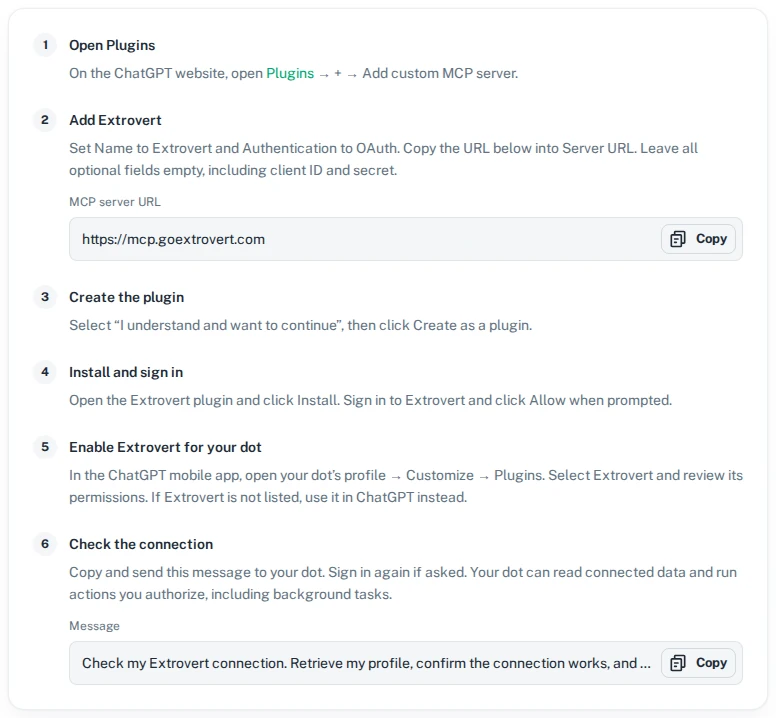
Extrovert's Connect to Dots page. Copy the URL and the check message from here.
You sign in through Extrovert, much like "Sign in with Google," without signing in to LinkedIn. Your dot never sees your LinkedIn password or session cookies. You don't need Developer Mode or an Extrovert API key. Each teammate connects their own dot with their own Extrovert account.
The steps in ChatGPT are the same as in our guide to connecting ChatGPT to LinkedIn. If you already set up Extrovert for ChatGPT, skip to step 6.
If your campaigns aren't running yet, look over the people, the topic and the Voice Extrovert prepared. Ask your dot to change what doesn't fit, then ask it to start the campaigns. The first posts and drafts show up within minutes.
Decide what your dot may do without asking
Two settings decide when your dot acts on its own and when it checks with you first.
- Plugin permissions. In ChatGPT, open Settings → Plugins, select Extrovert and choose its permission level: Always ask, Allow read actions, Allow low-risk actions or Allow all actions. These permissions are shared by your dot and your ChatGPT chats. In a company workspace, your admin's settings come first.
- Custom rules. These are instructions your dot keeps following. On a computer, open Settings → Personalization, then Custom rules. In the mobile app, open Customize → Custom rules. Describe an action, such as "approve LinkedIn comments" or "send LinkedIn DMs," and choose how your dot handles it, for example Ask before taking action.
Start by letting your dot read freely and ask before posting or sending anything. Once its drafts match what you'd write, loosen the rule for comments first. DMs go to people you have a real conversation with, so many people keep reviewing them before sending.
Give your dot a daily LinkedIn check
A dot can run a recurring check and bring the results back to you, without you opening a chat first. It also remembers earlier conversations, including which customers matter and what you last said to them.
Start with a task that reads your data and prepares drafts, then approve them in the chat:
| Ask your dot | What happens |
|---|---|
| "Every weekday at 9, check Extrovert for comment drafts and DMs that need me. Show me the five that matter most, with the draft text." | Your dot runs the check each morning and brings back a short list to approve, edit or skip. |
| "Every Monday, read the latest posts from my customers campaign. Tell me who announced a launch, a new role or a hiring push." | Your dot reads the posts Extrovert collected and flags the ones worth a comment or a message. |
| "Find conversations in my campaigns that are due for a follow-up. Draft a short reply that mentions their latest post, and show me before you send." | Your dot reads the conversations and the person's recent posts, then prepares replies for you to approve. |
| "Set up a topic campaign for posts about revenue operations, then tell me each Friday which discussions I should join." | Your dot creates the topic campaign and reviews what it collected every week. |
| "Find VPs of Sales at US SaaS companies with 50 to 200 employees that use HubSpot." | Your dot runs a Lead Finder search and shows a preview of up to 20 matches. |
Viewing search results is free. Adding people from it costs Extrovert Credits, one per person. Before your dot adds anyone, it tells you how many people, which campaign they're going into and what it costs, then waits for your approval.
Your dot can also take actions you've approved as part of a scheduled task. OpenAI limits that advance approval to the people, content and timing you named, so "send this follow-up to Anna on Thursday" works, while a general "keep in touch with my customers" still needs your approval.
In Extrovert itself, a new post from someone you know can turn into a suggested message, like this:
Extrovert reads the prospect's posts and skips the generic ones: opinion, industry advice, motivational post, promotional post. One post, "Went to SF Tech Week", is a Restarter signal. The next follow-up comes early and mentions it: "Seen you went to SF Tech Week. How did it go?" The prospect replies.


To see what your dot has running, open your dot's profile in the ChatGPT desktop app. Activity shows the tasks it's working on, and Scheduled shows recurring checks. Pause stops its current task; to end a recurring check, disable or delete it under Scheduled.
What happens when your dot approves or sends
Approving queues a comment; it doesn't post it that second. After your previous comment, there is a pause before this one goes out. It stays within your working hours and daily limit. Until then, you can cancel it, or ask your dot to.
DMs wait for your working hours too. A reply your dot sends joins a queue and goes out during your working hours. Ask for it to go "right now" and it's sent immediately.
"Nothing waiting" doesn't always mean nothing is happening. Your dot's approval list only covers running campaigns that wait for your review. Campaigns on Auto mode publish comments without asking, so those never show up there.
Your dot works through Extrovert, so the same daily limits and working hours apply to everything it does. You manage billing and teammates in the Extrovert app.
If your dot can't reach Extrovert
- Extrovert isn't in your dot's plugin list. On chatgpt.com, check that you clicked Install on the Extrovert plugin and finished the Allow step. Then update the ChatGPT app and open Customize → Plugins again.
- You don't see Add custom MCP server. Your plan or workspace doesn't let you add one. In a Business workspace, ask an admin or owner to add Extrovert.
- Your dot says it can't see your campaigns. Name the plugin in your request: "Use Extrovert to show my campaigns."
- "MCP error -32602: Tool not found." ChatGPT is using an old list of Extrovert actions. Open chatgpt.com/plugins, select Extrovert, click Refresh, wait for it to finish, then start a new conversation with your dot.
The Extrovert MCP help article covers less common problems. For how the MCP connection works across AI assistants, see the LinkedIn MCP guide.
Start small. Connect Extrovert, switch on one campaign and ask your dot each morning what's waiting for you. Once it picks the same posts and writes the same replies you would, let it approve more on its own.
FAQ
Does OpenAI Dots have a LinkedIn integration?
Not one that works with your feed or messages. LinkedIn's two ChatGPT plugins look people up and read ad results. Neither one comments, sends DMs or posts from your account. For that, connect your dot to a LinkedIn tool with an MCP server, such as Extrovert.
Which ChatGPT plan do I need?
For your dot to approve comments and send DMs through Extrovert, you need Business Premium, Enterprise or Edu. On Pro, your dot can read your Extrovert data, such as campaigns, drafts and conversations, but it can't take actions. Pro Dots isn't available in the EEA, the UK or Switzerland.
Can my dot send LinkedIn messages while I'm away?
It can send the messages you've approved in advance as part of a scheduled task, for the people and timing you named. For everything else, it prepares drafts and asks you. For comments that go out without your review, switch a campaign to Auto mode in Extrovert.
Is connecting my dot to LinkedIn safe for my account?
Extrovert keeps activity within your daily limits and follows your working hours. It spaces out actions, and anything over the limit waits for the next day. You choose what to review and what to automate. Your dot never sees your LinkedIn password or cookies, and it can only approve or send through Extrovert, so the same limits apply to everything it does.
How much does it cost?
The Dots connection is included in Extrovert's plan. One seat costs $49 a month on monthly billing, and seats get cheaper as your team grows. Each seat is one LinkedIn account and includes 250 tracked people, 1 topic and 300 Credits a month. The 10-day trial needs no card, and the pricing page has the team rates. On the ChatGPT side, you need a plan with Dots.