On this page
Claude has no built-in connection to your LinkedIn feed, comments or messages. LinkedIn's only official Claude connector, LinkedIn Hiring Pro, drafts and posts one free job listing. It doesn't touch anything else on your account.
To have Claude comment on posts, answer DMs and find prospects on LinkedIn, connect it to Extrovert. Extrovert is a LinkedIn engagement and outreach tool. You connect your LinkedIn account to Extrovert once, and Claude works through Extrovert's MCP server:
Claude → Extrovert → your LinkedIn account
Setup takes a few minutes. In Claude, open Customize → Connectors, add a custom connector named Extrovert with the URL https://mcp.goextrovert.com, then sign in to Extrovert and click Allow.
What Claude can do with LinkedIn on its own
- Post a job. LinkedIn Hiring Pro, made by LinkedIn, drafts and posts one free job from Claude. It can't promote or edit jobs, or manage applicants.
- Schedule posts or report on ads. The other LinkedIn connectors in Claude's directory come from third-party tools for publishing posts and getting page or ad stats.
- Click around in your browser. Claude in Chrome, an extension on paid plans, reads and clicks web pages while you watch. It works one page at a time and has no LinkedIn-specific tools.
- Read what you paste. Without a connector, Claude only knows the posts, profiles and messages you copy into the chat.
None of these let Claude see your prospects' new posts, draft comments for them or reply to your DMs. Through Extrovert, Claude can:
- Work through your comment drafts. Show what's waiting, rewrite a draft that doesn't fit, approve the good ones and skip the rest.
- Answer DMs. Read a conversation, draft a reply, tighten it on request and send it when you say so.
- Find new prospects. Search Extrovert's B2B database by job title, seniority, company, location, industry or the tools a company uses, and add the right people to a campaign.
- Set up and run campaigns. Choose whose posts to follow and which topics to watch, fill in your Voice (the tone, background and examples Extrovert uses to write), and start or pause campaigns.
The full list of actions and more example prompts are in our LinkedIn MCP guide.
Before you start
You need three things:
- An Extrovert account. The trial lasts 10 days and needs no card. At sign-up, Extrovert uses your LinkedIn profile URL to prepare a starting Voice and your first campaigns.
- Your LinkedIn account connected in Extrovert. The profile URL alone doesn't connect it. Open Settings → LinkedIn account and connect with the Chrome extension or with your LinkedIn email and password.
- A Claude account. Any plan works. The Free plan allows one custom connector, which is enough for this. On Team or Enterprise, an owner adds Extrovert first (see below).
Connect Claude to LinkedIn in Claude web or desktop
Extrovert shows these same steps under Connect AI → Claude in the left menu, with a Copy button for the server URL.
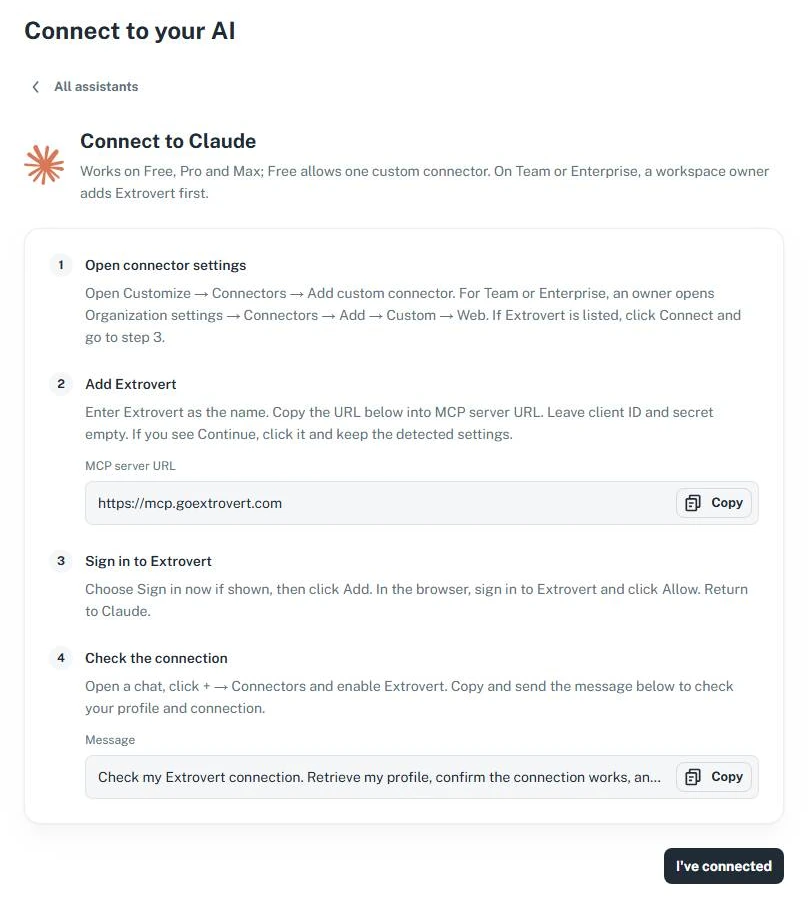
Extrovert's Connect to Claude page. Copy the URL and the check message from here.
- Open connector settings in Claude. Click Customize in the sidebar, then Connectors. Click Add, then Add custom connector.
- Add Extrovert. Type
Extrovertas the name and pastehttps://mcp.goextrovert.cominto MCP server URL. Leave the client ID and secret empty. If you see Continue, click it and keep the detected settings. - Sign in to Extrovert. Choose Sign in now if Claude asks, then click Add. A browser tab opens Extrovert's sign-in page. Sign in with your Extrovert account, not your LinkedIn login, and click Allow. If the connector still shows Connect, click it.
- Switch it on in a chat. Start a new chat, click +, open Connectors and turn Extrovert on.
- Check the connection. Send this message: "Check my Extrovert connection. Retrieve my profile, confirm the connection works, and get ready to help me use the app." Claude replies with your profile from Extrovert and confirms the connection works.
The Claude desktop app uses the same steps. Once Extrovert is connected, it's also available in the Claude app on iPhone and Android. Adding connectors from the phone is still in beta, so do the setup on the web or desktop.
On a Claude Team or Enterprise plan
An owner adds Extrovert for the whole organization once: Organization settings → Connectors → Add → Custom → Web, then adds the name and URL shown above. On Enterprise, a custom role with "Manage access to Libraries" can do it too.
Everyone else then opens Customize → Connectors, finds Extrovert with the Custom label and clicks Connect. Each person signs in with their own Extrovert account, so Claude works with their LinkedIn account and their campaigns.
Connect Claude Code
In Claude Code, you add Extrovert with one terminal command.
Add Extrovert. Run this in your terminal, outside Claude Code:
claude mcp add --transport http --scope user extrovert 'https://mcp.goextrovert.com'Start sign-in. Run
claude, type/mcp, select extrovert and choose Authenticate.Sign in to Extrovert. In the browser, sign in to Extrovert and click Allow. If no browser opens, use the sign-in link in your terminal.
Check the connection. Type
/mcpto see that extrovert is connected, then send the same check message as above.
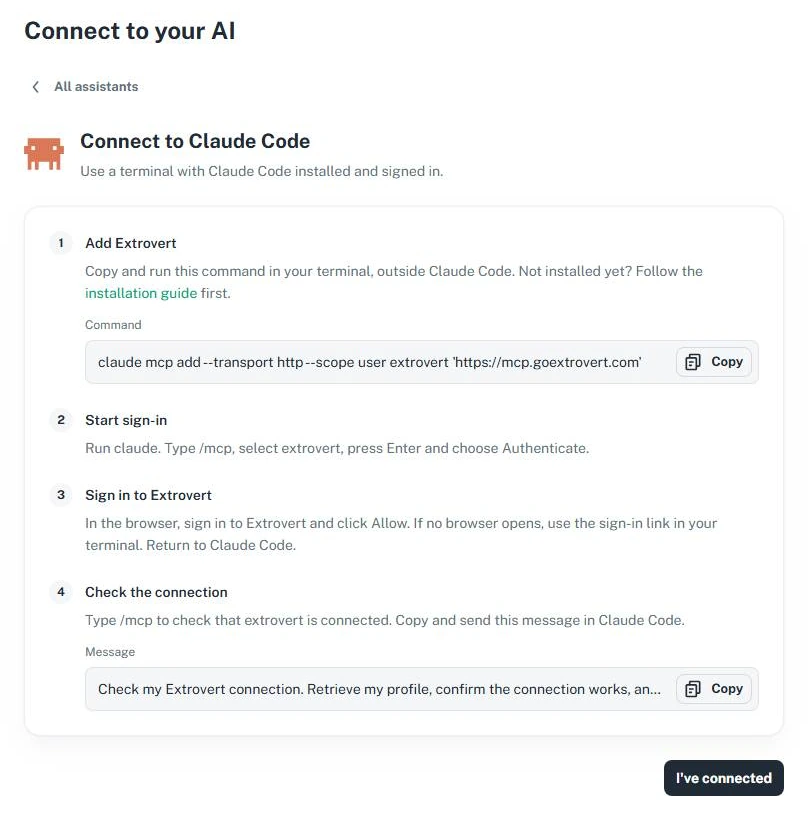
The same command on Extrovert's Connect to Claude Code page.
Choose what Claude can do without asking
The first time Claude uses an Extrovert action, it asks you to Allow once or Always allow. To set this for each action, open Customize → Connectors, select Extrovert and open Tool permissions. Each action, or group of actions, can be Always allow, Needs approval or Blocked.
A good start is to let Claude read without asking and keep approving comments and sending DMs on Needs approval. Allow more actions once Claude's choices match yours.
Extrovert's own rules apply to everything Claude does:
- Comments go out within your limits. A comment Claude approves goes out under the same daily limits and working hours as one you approve in Extrovert, with gaps between actions.
- DMs wait for your working hours. A DM Claude sends is queued and goes out inside your working hours. If you ask Claude to send it right now, it goes right away.
- Claude stays inside your account. It never sees your LinkedIn password or cookies, can't change billing or teammates, and can't do anything you couldn't do yourself in Extrovert.
What to ask Claude first
In your first session, you can follow the same steps you would in Extrovert:
- "Show me my campaigns." Look over the Voice and campaigns Extrovert prepared at sign-up. Ask Claude to change whatever doesn't fit, then to start the campaigns. New posts and drafts start showing up once a campaign runs.
- "What needs attention today? Show me each comment draft with the post it replies to." Claude lists the drafts waiting for you across your campaigns.
- "Rewrite the second one: shorter, and ask about their pilot. Then approve it." Brief Claude the way you'd brief a colleague.
- "Draft a reply to the last message from Anna, keep it short. Show me before you send it." Claude reads the conversation first, so the reply fits it.
- "Find VPs of Sales at US SaaS companies with 50 to 200 employees that use HubSpot." Claude shows a free preview of up to 20 matches. Adding people costs 1 Extrovert Credit per person, and Claude tells you the number, the campaign and the cost before it adds anyone.
Inside Extrovert, editing and approving drafts looks like this:
Illustration: a draft comment on a prospect's post; your direction, typed or spoken: "Make it shorter. Ask what they use today."; the draft rewritten with it, shorter, with the Approve button.

Make it a morning routine
On paid Claude plans, Claude Cowork can run a prompt on a schedule, such as every weekday, and it can use your connectors. Give a scheduled task an Extrovert prompt like "What needs attention in Extrovert today? Summarize the comment drafts and DMs that are due." It prepares the list. Approving comments or sending messages still requires your go-ahead.
For a full daily outreach routine from Claude, with comments before the connection request and DM follow-ups, see the warm LinkedIn outreach from Claude playbook.
If Claude can't see Extrovert
| What you see | What to do |
|---|---|
| Claude says it can't access your campaigns | Click + → Connectors in this chat, turn Extrovert on and start a new chat. |
| The connector still shows Connect | Click it, sign in to Extrovert and click Allow. |
| Claude shows another team's campaigns | Claude uses the team selected in Extrovert. Switch it there, or name the team in your prompt. |
| Add custom connector is missing on Team or Enterprise | Ask an owner to add Extrovert under Organization settings → Connectors. |
| The Free plan won't let you add Extrovert | Free allows one custom connector. Remove the one you have, or move to a paid plan. |
| Claude Code says extrovert needs authentication | Type /mcp, select extrovert and choose Authenticate. |
If it still doesn't work, open Guides and support → Chat with support in Extrovert, and we'll help.
FAQ
Is there an official LinkedIn connector for Claude?
Only for job posts. LinkedIn Hiring Pro, made by LinkedIn, drafts and posts one free job. Nothing official from LinkedIn connects Claude to your feed, comments, messages or connections. For those, connect Claude to Extrovert, which is connected to your LinkedIn account.
Does it work on Claude's free plan?
Yes. Claude's Free plan allows one custom connector, and Extrovert can be that one. The connection itself works the same on every Claude plan.
Can Claude post on LinkedIn for me through Extrovert?
Extrovert focuses on comments and DMs, so Claude can comment on other people's posts and answer messages through it. Publishing posts to your own feed isn't part of Extrovert.
Is it safe for my LinkedIn account?
Extrovert keeps activity within your daily limits and follows your working hours. It spaces out actions, and anything over the limit waits for the next day. You choose what to review and what to automate. Claude never sees your LinkedIn password or cookies, and it acts only through Extrovert, so the same limits apply to everything it does.
How much does it cost?
Adding the connector in Claude is free. Extrovert costs $49 per seat a month on monthly billing, and seats get cheaper as your team grows. Each seat is one LinkedIn account and includes 300 Credits a month. The 10-day trial needs no card, and the pricing page has the team rates.